Open iWhisk
The iWhisk Field Manual Part 02 · Food, dates and storage Section 2.05

2.05

Part 02 · Food, dates and storage · Receipts

Add a whole grocery trip from the receipt

Photograph the receipt instead of unpacking into the app.

Where this is in iWhisk

Capture, then Grocery receipt

One page: use the camera. A long receipt: photograph each page separately, then select up to 10 pages from your library in one go.
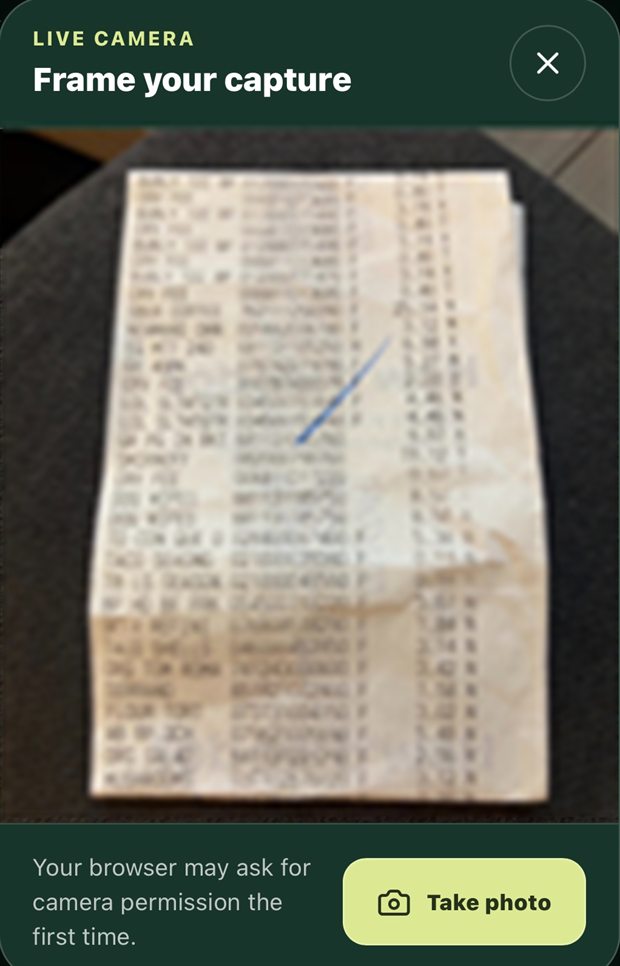
The live camera panel, headed Frame your capture, showing a long till receipt lying flat on a dark worktop and filling most of the frame. A note reads that your browser may ask for camera permission the first time, beside a Take photo button.
Screen 2.05a Flat, filling the frame, one page Lay the receipt down rather than holding it. A held receipt curls, and a curled receipt loses a line or two in the bend. Fill the frame with it, keep the edges in, and let it run off the bottom if it is long. That page is one capture, and the next page is the next one. The lines here are deliberately out of focus. Yours will not be.

2.05.1

Ticked, or not

Every line comes back with a confidence score and a Food or Not food setting. Lines iWhisk is sure about arrive ticked. Lines it is unsure about, and anything it reads as a household good, arrive unticked and shaded back.

Only ticked lines enter your Kitchen. Tick anything it left out, untick anything you do not want, and move any line between Food and Not food with one tap. The button at the bottom counts what you are about to save before you save it.
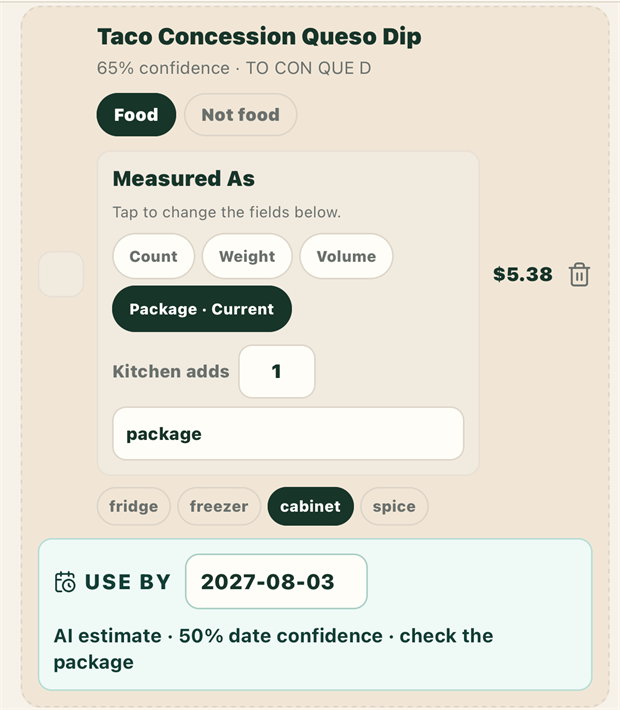
An unticked line from a receipt review, shaded and outlined with a dashed border. It reads Taco Concession Queso Dip, 65 percent confidence, TO CON QUE D, with Food selected over Not food. Below are measurement options with Package current, Kitchen adds 1 package, storage chips with cabinet selected, and a use-by date of 2027-08-03 marked AI estimate, 50 percent date confidence, check the package.
Screen 2.05b A line iWhisk is not sure about Sixty five percent confidence, so the box on the left is empty and the whole card is shaded. It is still set to Food and everything on it is editable. iWhisk is not refusing this line, it is declining to add it on your behalf. Tick it and it goes in.

2.05.2

Receipt names are terrible, and you can fix them

SHRD MOZZ 8Z becomes "Shredded mozzarella". The original line stays visible underneath, next to how confident iWhisk is, so you can check it yourself.
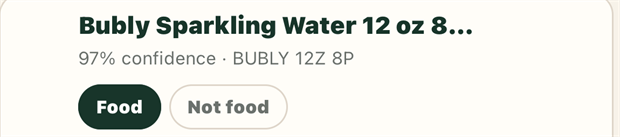
The top of a reviewed receipt line. The name reads Bubly Sparkling Water 12 oz 8 dots, and underneath it, 97 percent confidence, BUBLY 12Z 8P. Food is selected over Not food.
Screen 2.05c The receipt line never disappears The name on top is what iWhisk worked out. The line underneath is what the till actually printed, with the confidence beside it. Keeping both is what lets you catch the one it got wrong, instead of finding it weeks later in your Kitchen under a name you do not recognise.

2.05.3

Getting the amount right

Receipts say "2" when you bought two 400g tins. Tell iWhisk how the item is measured, Count, Weight, Volume or Package, and it gives you the right fields.
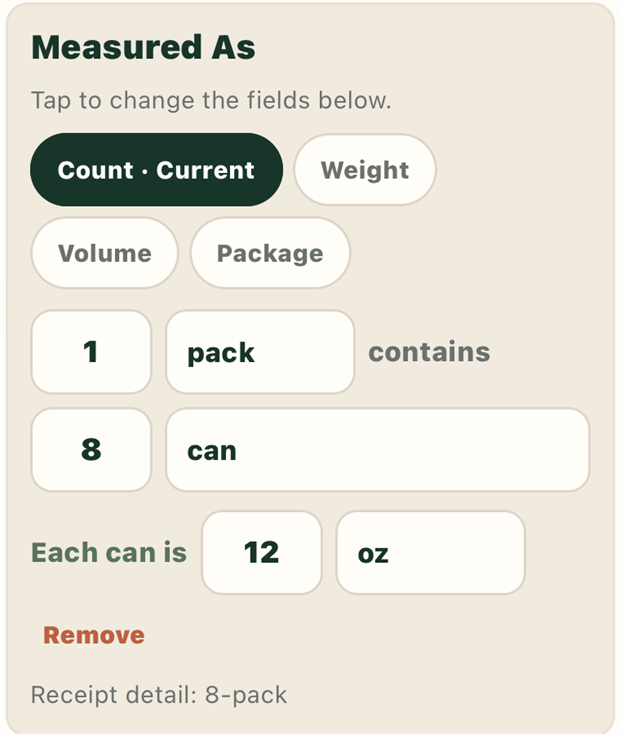
A panel headed Measured As, with the note tap to change the fields below. Four options: Count, marked current, Weight, Volume and Package. The fields underneath read 1 pack contains 8 can, and each can is 12 oz. A Remove link sits below, and a footnote reads receipt detail, 8-pack.
Screen 2.05d One line, eight cans The receipt sold this as a single item. Your kitchen has eight cans of twelve ounces each, and that is what a recipe needs to know. Changing Count to Weight, Volume or Package rebuilds the fields underneath, so you are never typing grams into a box that wanted tins.
💡
Photographing a receipt wellFlatten it, shoot straight down, get the whole width in frame, keep your shadow off it. Long till receipts curl. A book on each end solves it in two seconds.